
The month stops being a surprise
Income and spending get written down when they happen, not after payday is gone and you are trying to remember.
 Dinerario · For home
Dinerario is the personal and family finance app. You see what comes in, what goes out, and what you meant to set aside. You can schedule a payment or a reminder and also see it on Google Calendar, next to the rest of your month.
Income and spending get written down when they happen, not after payday is gone and you are trying to remember.
Saving “whatever is left” feels endless. A named goal — the repair, the cushion, the trip — is something you can watch move.
It works for one person and for a home. You agree on what is shared and what stays personal.
Schedule rent, utilities, or an installment. The reminder can live on the same calendar as the rest of your life.
Feature guide
You do not have to be a naturally tidy person. The first month only needs the big items. The smaller ones can wait until the habit feels safe.
This guide walks the general path in everyday language. Where a real screen already exists, you see it inside the phone. The other steps are just the explanation: a button name may shift a little when we update the app.
01
Decide the month before the month decides you.
Step 1
List what you expect to receive: wages, a small business, a transfer from family. If the amount changes, use a careful number, not the best month you remember. A budget helps when it looks like real life.
Step 2
Groceries, rent, transport, debts, school, something for pleasure. Use your own words. A category called “misc” tells you nothing at the end. Two groups you recognize are better than one blurry pile.
Step 3
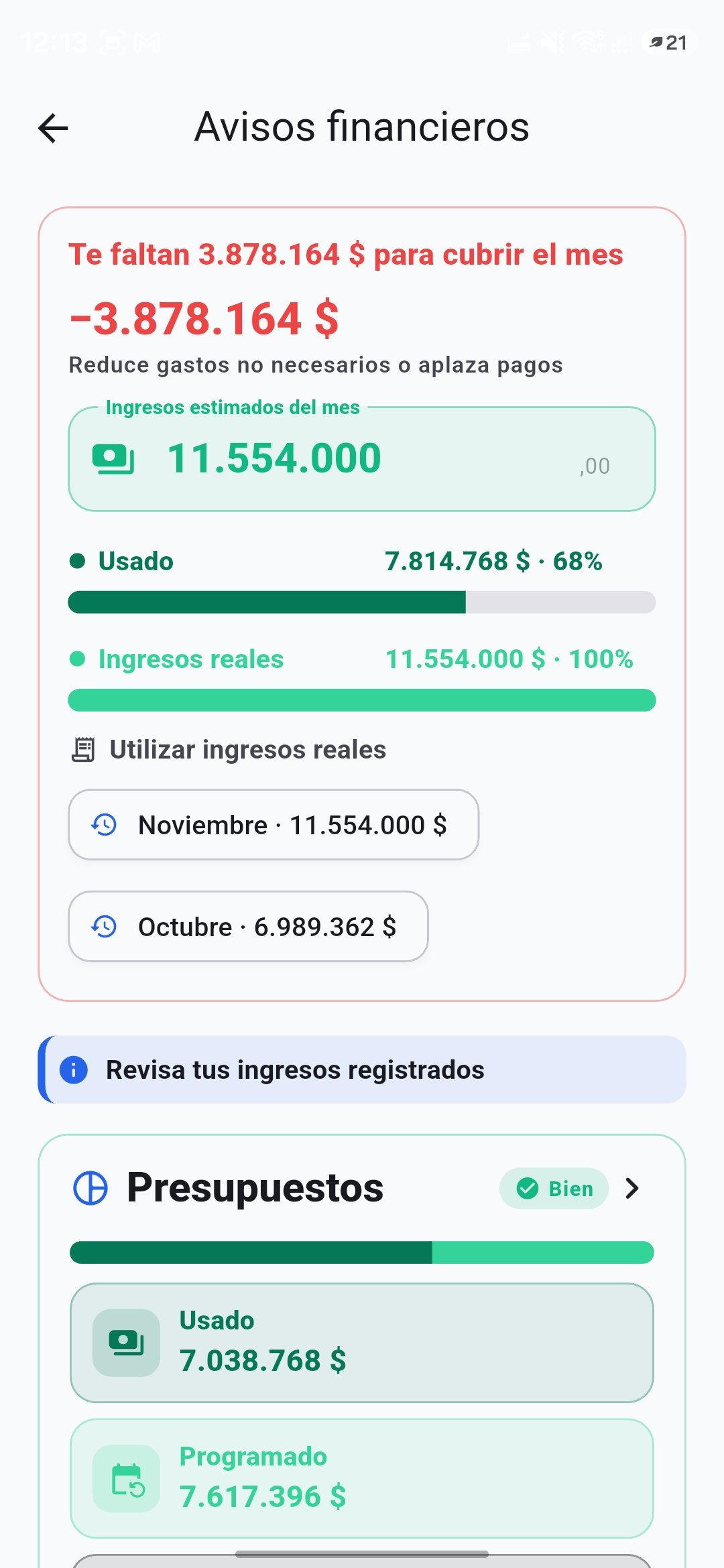
Financial alerts show whether the month still covers you: what you expected to come in, what actually came in, and how much of the budget is already used, next to what was planned. Adjusting in time is kinder than finding the hole when there is no room left. The point is to see, not to scold yourself.
02
Every amount in or out gets a short note.
Step 1
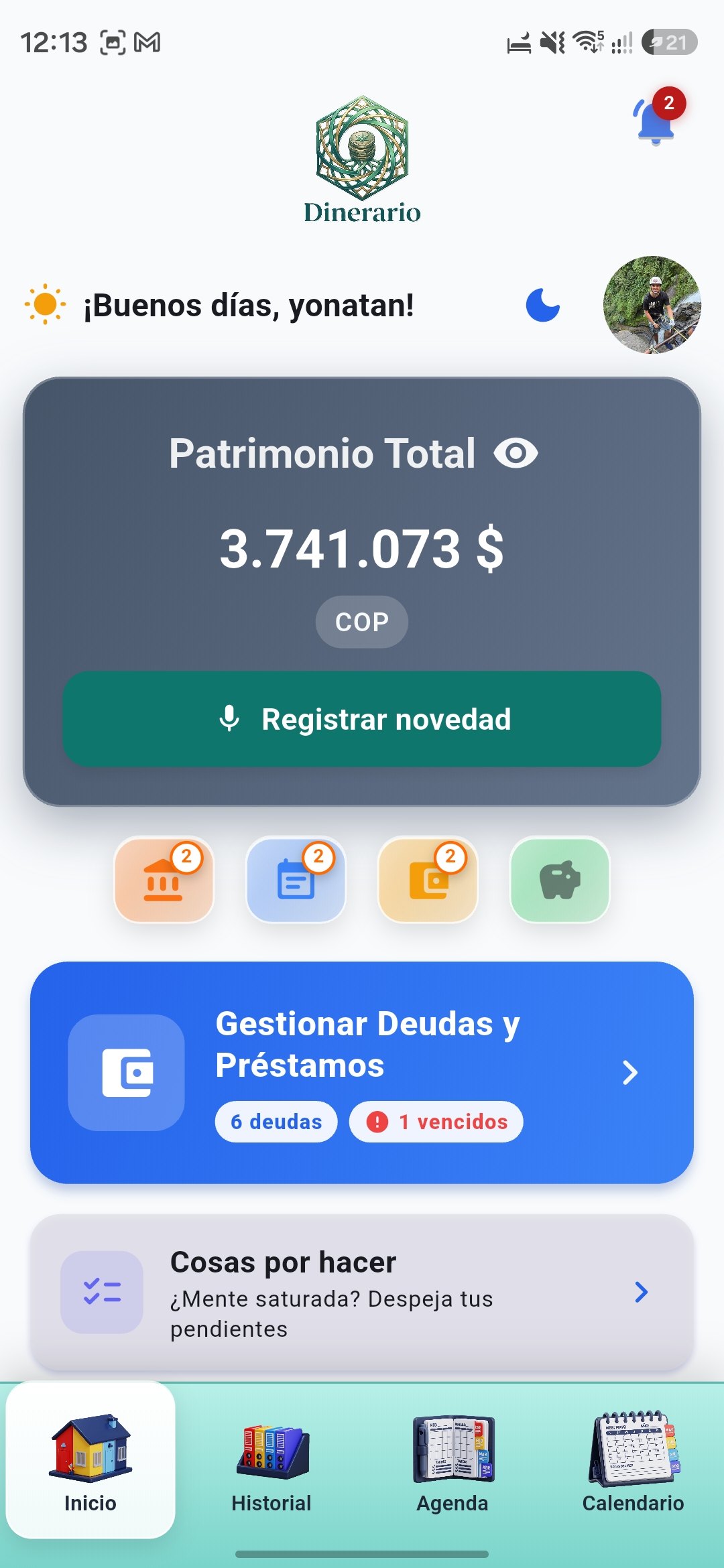
The home screen shows your net worth. Register an update is where an income or an expense goes, and you can dictate it with the microphone. Debts and the to-do list sit on that same screen, so they are not only in your head. If money lands in an account and you also write it down as cash, count it once.
Step 2
The coffee, the groceries, the phone top-up. Noting it in the moment takes less than a minute. Rebuilding Sunday night almost never adds up. If you forget one, add it when you remember: a late note still beats a blank.
Step 3
The categories show where the money went, without blaming you for a treat and without ignoring a cost that repeats. The largest group is the first place you can decide, not the first place you have to suffer.
03
A destination for the money you want to set aside.
Step 1
Plain “savings” gets spent. “Fix the fridge” or “two months of cushion” does not. The name reminds you what the money was for on the day you feel like using it.
Step 2
A sum and a date turn the goal into a step. If the date is far away, break the amount into small portions: this payday, not the whole year. A portion you can actually set aside beats a number that scares you.
Step 3
Each time you separate some money, record it on the goal. Seeing it move is more honest than the feeling of “I could not this month”. If a month you set nothing aside, the goal stays. One hard payday does not erase it.
04
Look at shared costs together, without losing what is personal.
Step 1
Invite the people you share home costs with. Each person signs in with their own access. You do not need to share a password, any more than you would share the one for the bank.
Step 2
Groceries and rent can belong to both of you. A personal expense can stay in each person’s own view. Saying that at the start avoids the argument in the middle of the month. The app lines up the numbers. The agreement is yours.
Step 3
Fifteen minutes with the summary avoids the fight about “I think we spent a lot”. You are looking at the same list. Pick a fixed moment, a Sunday for example, so the conversation is not only the one that happens when someone is already upset.
05
Rent should not depend on memory.
Step 1
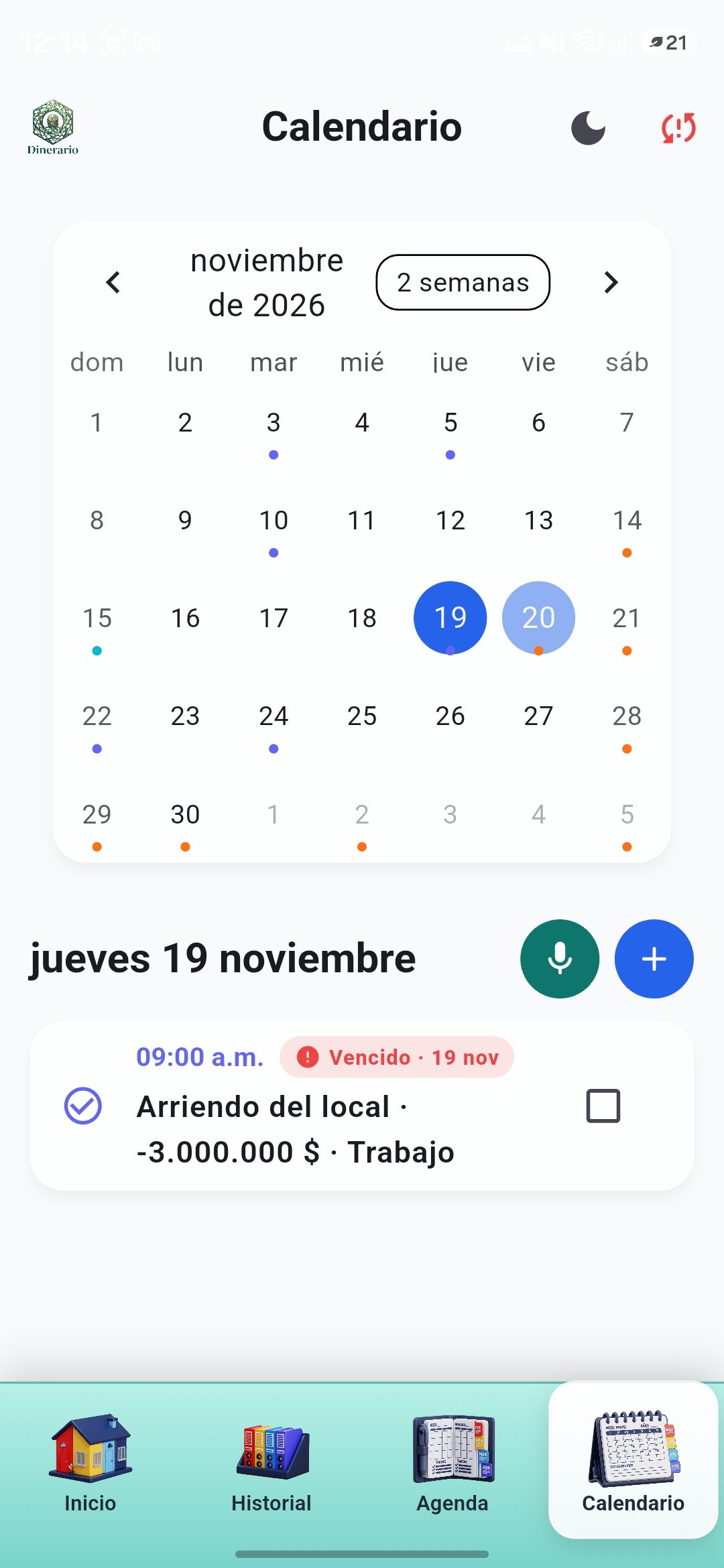
The calendar marks the days that have a reminder. Open one and you see the time, whether it is overdue, and the amount, such as the shop rent. You can mark it done. The reminder nudges you. You still confirm the payment.
Step 2
When you connect a Google account, the reminder can show up on the same calendar as appointments and birthdays. Then you are not checking two places. Connect only the calendar you want to use, and you can disconnect it when you no longer need it.
Step 3
The notice is in Dinerario and, if you connected it, on the calendar too. When you pay, mark it done. If you leave it open, next month you will not know whether that installment already left. A minute of closing prevents the doubt.
06
A picture of the month, so the next one can be adjusted.
Step 1
Start with the month that just ended. You still remember it. Comparing with earlier months makes sense once several are recorded. Before that, one month written down properly is worth more.
Step 2
The report groups income, spending, and how the goals moved. Read the largest group first. That is usually where next month’s decision sits: lower a cost, or accept that the amount is fixed and needs a real place in the plan.
Step 3
With that picture, change the categories that came up short or had room left. Next month’s budget should come from what happened, not from an ideal. If a fixed cost surprised you, raise it in the plan. Hiding it does not make it smaller.
Downloads
Write to us on WhatsApp and we will tell you. If you are already trying it and a screen is unclear, write too. That is what support is for.